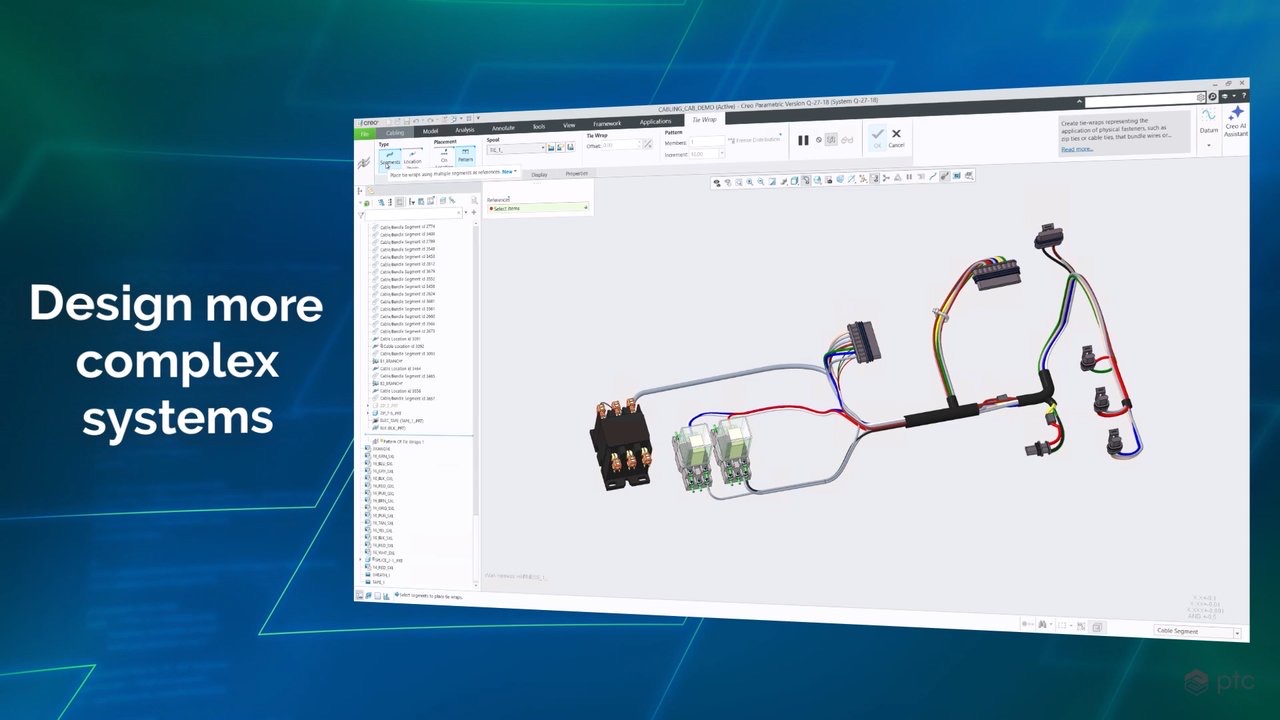

Develop the model. Extend the workflow.
Explore updates from everyday modeling through definition, analysis and manufacturing. Use this overview to understand the breadth of the release before opening a specific technical brief below.

Explore Creo 13 and Creo+ 2027.0 through the work they support: developing geometry, communicating design intent and preparing for production.
Explore the releaseCompare the current release highlights, then choose the improvements relevant to your environment. The Creo 13 video gives a broad view of changes across modeling, product definition, analysis and manufacturing, while the Creo+ 2027.0 video covers enhancements for the cloud-enabled Creo environment. Watch the overview that matches your setup, then use the feature briefs below to relate a change to a familiar part, assembly or deliverable. Confirm your installed build and entitlements before planning a rollout.
Explore updates from everyday modeling through definition, analysis and manufacturing. Use this overview to understand the breadth of the release before opening a specific technical brief below.
Review its workflow enhancements alongside your delivery and administration needs. Creo+ 2027.0 includes changes to modeling, composites, cabling, MBD and simulation; evaluate the release in the context of your cloud-enabled Creo environment.
The release names identify different update tracks; they do not establish the tools included in your package.
Compare Creo and Creo+ delivery ↗Explore each technical brief to see the release imagery, the change it describes and a focused question for your team. Specialist tools depend on the applicable package or extension.
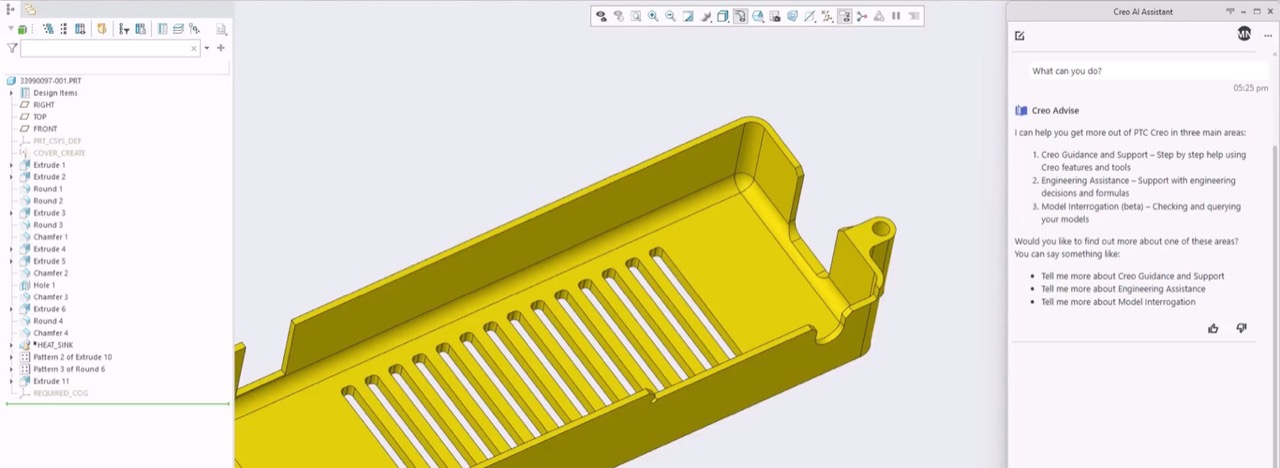
Advise provides general Creo guidance. PTC describes Assist as beta and Automate as alpha, with separate-extension scope. Verify current maturity and entitlement, and retain human review. General help is different from an answer that depends on the open model: establish which information the capability uses and how an engineer will check its response.
Identify whether the task needs documentation guidance, model context or a proposed change. Agree what the engineer must verify before using the result.
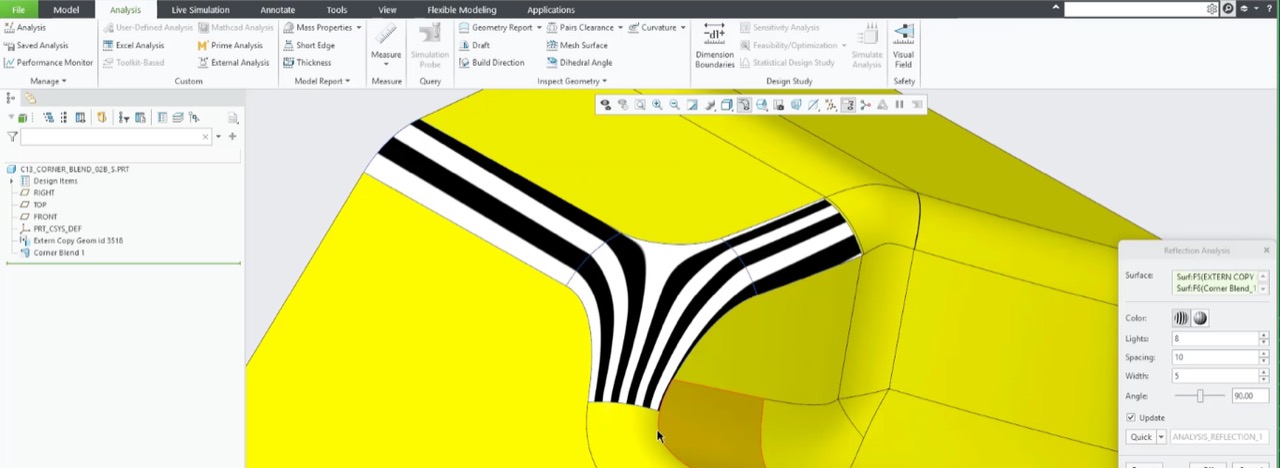
Assembly filtering, model tabs, feature presets and corner blends extend everyday design workflows. These changes address different moments in a design session: locating geometry, moving between models and creating a repeatable feature. Consider the interaction as well as the final shape when assessing the improvement.
Bring a familiar assembly. Review how your team finds the right model, controls regeneration and reuses an established modeling approach.
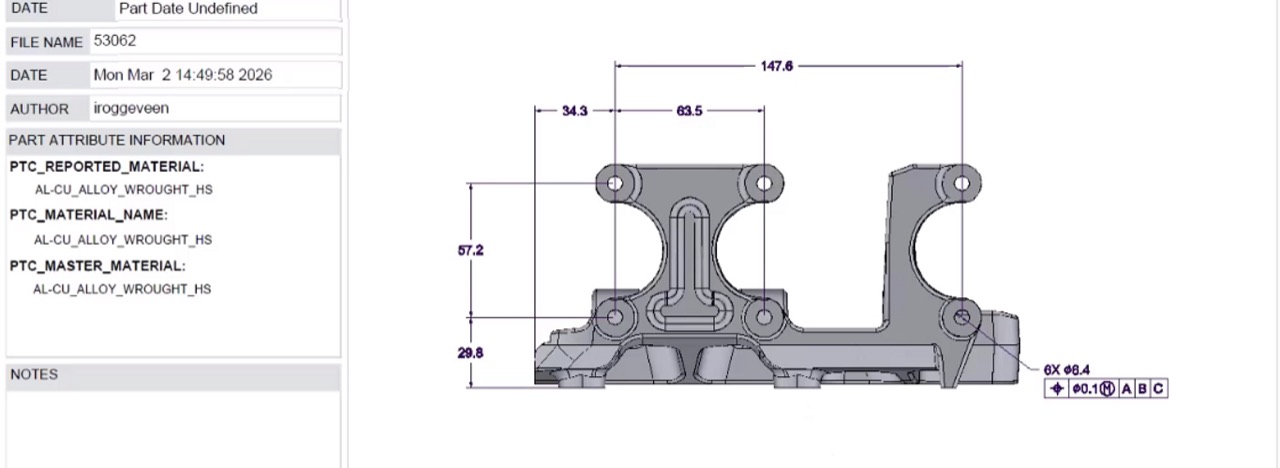
3D PDF templates and GD&T and tolerance tools receive updates. The aim is to make a model-based handoff easier to interpret, including how product information is presented to someone outside the authoring session. Agree the required annotations and review format before replacing an established deliverable.
Select a drawing-to-model handoff. Identify which annotations, references and exported information the receiving reviewer needs.
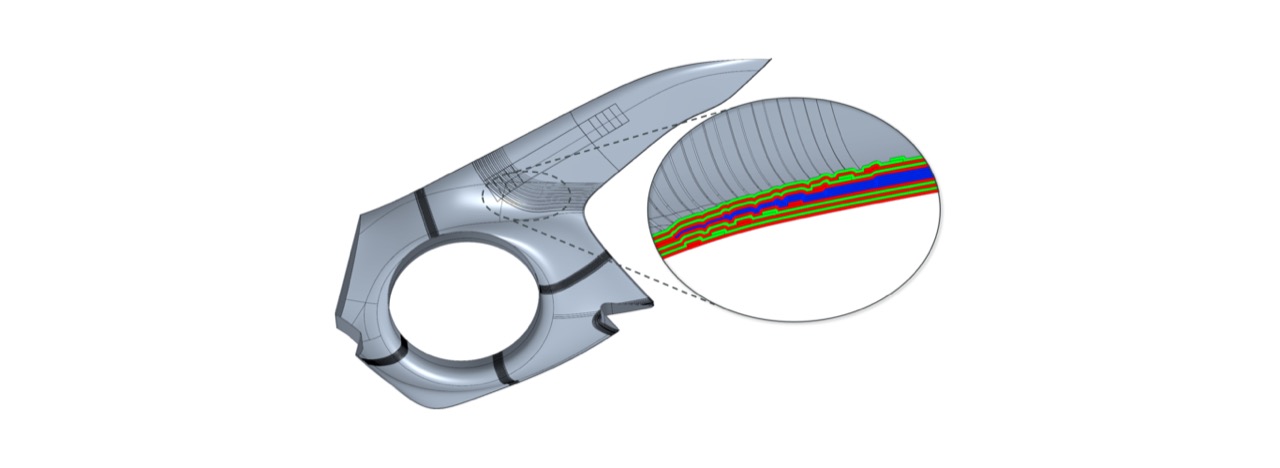
Composite copy-and-paste and draping workflows expand design reuse. Reusing a layup is a starting point for another design, not evidence that it behaves identically on different geometry. Review the transferred definition, local transitions and material assumptions together so that reuse remains an engineering decision.
Choose a recurring laminate or transition. Review what can be reused and what must be checked for the new geometry.
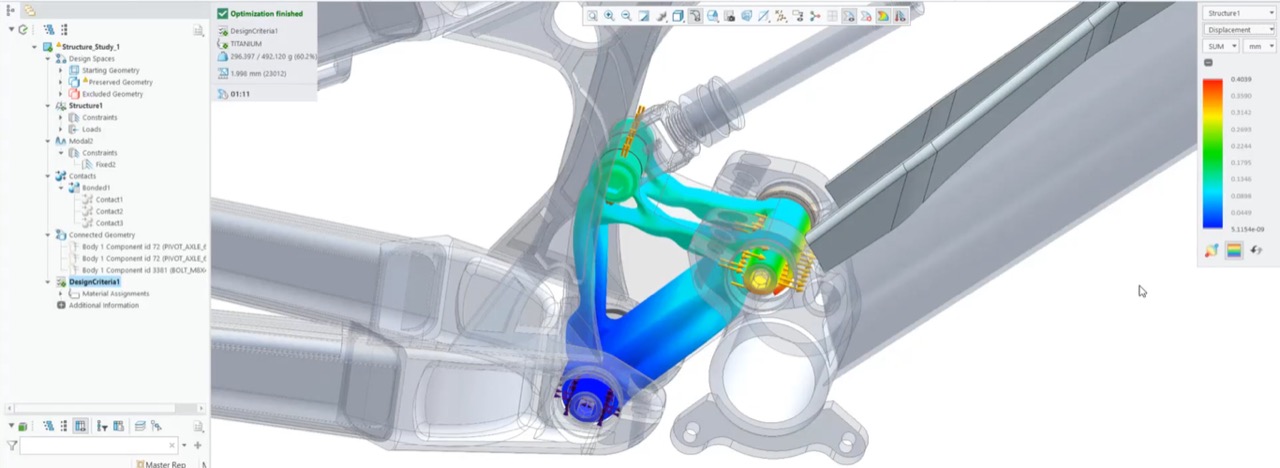
Assembly-context optimization, ECAD assembly support and bolt/preload workflows broaden analysis options. A more connected study still depends on the boundary conditions and connections that represent the intended use. Keep the acceptance criteria consistent when comparing a new design alternative with the current baseline.
Bring a design alternative and its intended loads. Agree the assumptions and specialist tools needed before comparing the study.
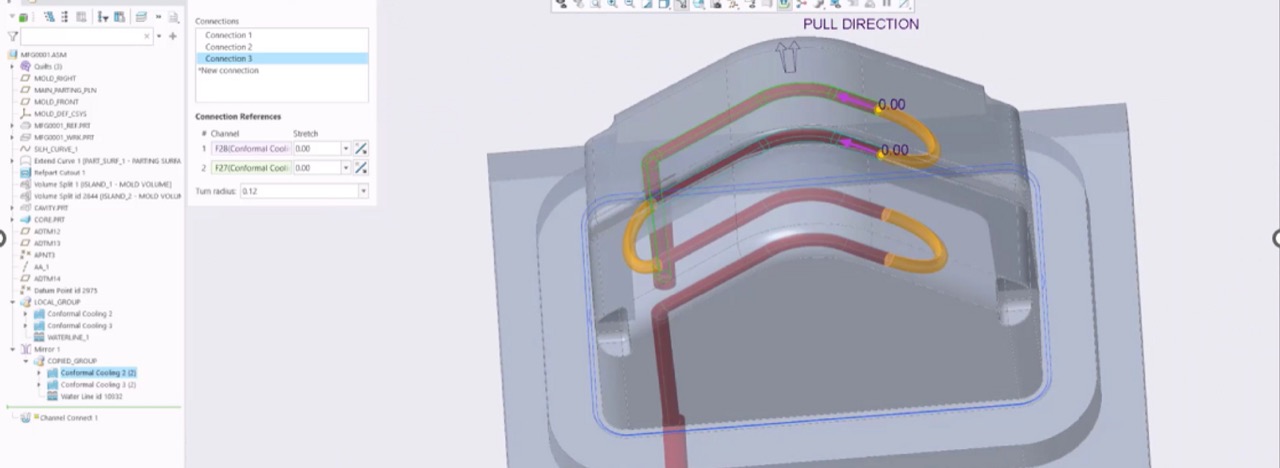
Updates cover lattices, conformal cooling, swarf milling and NC parameter presentation. These support different production methods rather than one universal manufacturing workflow. Select the relevant operation and review its geometry, setup and output with the person responsible for process validation.
Start with one manufacturing operation. Review the model reference, process choices and checks needed before the result reaches production.
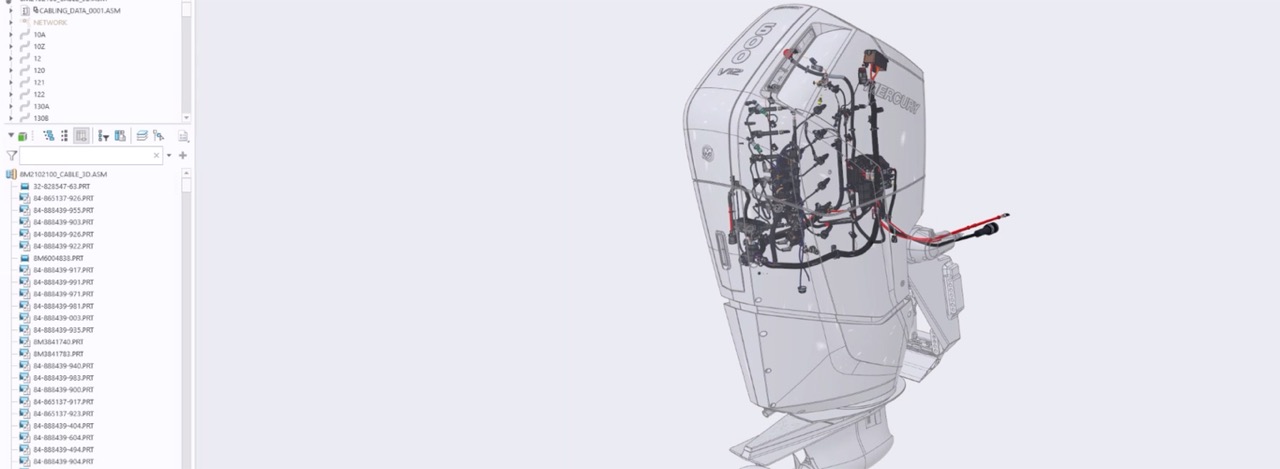
Independent harness components and bundle workflows support routed-system development. Separating the harness working context can help teams organize reuse and responsibility. Define the interface to the surrounding assembly so a mechanical change does not leave electrical references or downstream documentation unclear.
Choose one interface between electrical and mechanical teams. Identify who owns the harness reference and how a revision reaches the next discipline.
Explore the tools behind the release updates.
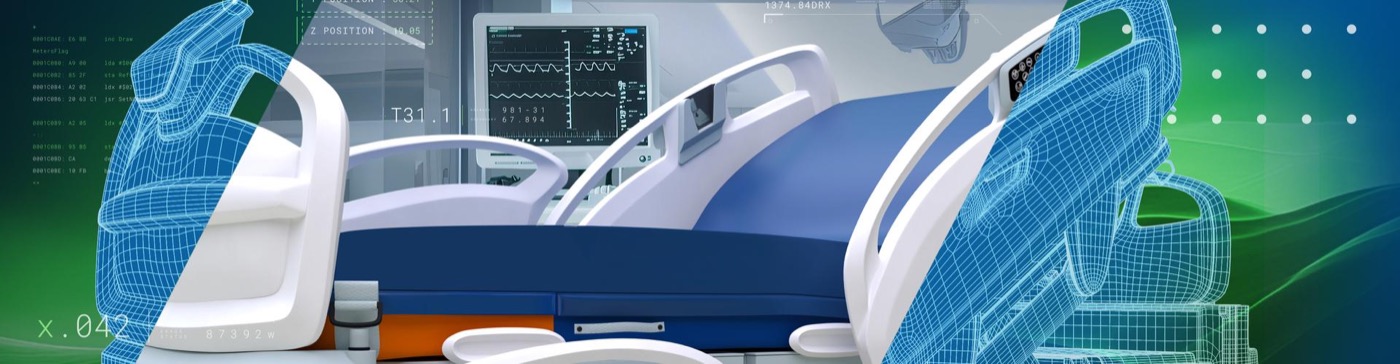
Before changing versions, capture how one representative task works today. Run the same task in the target release and compare the finished output before recommending rollout.
Choose an update to testOne baseline.
Three checks.
Save the current model, dependent drawings and expected result. Note the steps or rework the update is meant to improve.
Use the same model and acceptance criteria in the target release. Record both the improvement and any difference that needs investigation.
Have the person who uses the finished output confirm that it still meets their needs. Assign an owner to any issue that would block rollout.
Take a release theme into a working engineering question.
Start from the work your team needs to do.
Use the parent overview to establish the product scope. Select one first task and define an output that would demonstrate a useful result.
Explore the Creo product overview ↗Record your installed version and preserve a working copy of a model with its dependent drawings, templates and connected workflows. Agree which results must remain consistent and who reviews discrepancies before rollout.
Discuss an upgrade evaluation ↗Review the users, capabilities and timing behind an access or renewal question. Keep that commercial discussion distinct from technical upgrade validation.
Review delivery and package scope ↗A release review is most useful when it starts with a familiar design. Use an industry-specific model and its expected outputs to decide which Creo enhancements deserve a closer look with your team.
Scroll or swipe to explore all 5 industries. Use Tab to reach each industry link.

Bring a representative assembly or composite part to the release discussion. Examine the relevant modeling and definition tools against your established review process, keeping material choices, design intent and required deliverables in view. Which model details and annotations must remain clear when the design moves into the next review?

Vehicle programs coordinate components across packaging, supplier and manufacturing constraints. Use this setting as a practical example when evaluating new Creo capabilities against an existing design workflow. Which product interface and review criteria should guide the evaluation?

Choose a machine assembly with familiar routing or machining needs. Review the relevant enhancements at the point where the design becomes a production input, and check the handoff against the tools and responsibilities already used by your organization. What must the receiving team know about the selected assembly before planning its next manufacturing step?

Use an enclosure or compact assembly to review how design changes affect packaging and the information shared with manufacturing. Compare the working model with the drawings or model-based definition your team needs to communicate the change. Can reviewers understand the revised geometry, interfaces and intended output without reconstructing the designer’s reasoning?

Device teams work within defined design controls and documented review responsibilities. Use this setting as a practical example when evaluating new Creo capabilities against an existing design workflow. Which product interface and review criteria should guide the evaluation?
Use your installed environment and intended workflow to frame the next discussion.
Start with your current Creo version, deployment model and critical workflows. Creo 13 and Creo+ 2027.0 are separate release references; confirm the applicable build, system requirements and upgrade route for your environment.
No. Specialist composites, simulation, manufacturing and AI capabilities can require particular packages or extensions. Scope the tools against your entitlement and the task you intend to perform.
PTC describes Advise as general Creo guidance. Its release page identifies Assist as beta and Automate as alpha, with separate-extension scope. Verify current availability and retain human review for model-related work.
Yes. Use a working copy with its dependent deliverables so discrepancies can be reviewed before rollout. The upgrade-planning section outlines what to include.
Bring the model, output or workflow your team wants to improve.
TriStar can help scope the tools, rollout and preparation around that work.