

Creo Engineering Notebook

Give the model
the reasoning behind it.

Keep the engineering reasoning with the geometry it informs. Connect Mathcad-powered worksheets to selected Creo parameters, document the method and make the next design iteration easier to understand.

Explore Engineering Notebook
Engineering math in the model context

Give every dimension a reason.
Bring calculations into Creo.

Creo Engineering Notebook brings an engineering calculation worksheet into the context of a Creo model. Use natural math, notes and units to explain a design relationship, then connect selected values to the model through defined inputs and outputs.

Engineering Notebook support in Creo 12 video poster
See Engineering Notebook support in a Creo 12 demonstration, including embedded worksheets and their connection to the CAD model.

Read from the model
Designate worksheet inputs and connect the Creo values needed by the calculation. Keep parameter names and units understandable.
Work through the reasoning
Document assumptions, methods and the values that matter to the design question. Review the calculation before returning a result.
Return an agreed result
Use the worksheet’s output mapping and Save and Push workflow, then check regeneration and the resulting model. Changed model inputs require Update Inputs in the worksheet.

Engineering Notebook is an optional Creo installation feature with entitlement in selected Creo packages. Confirm your release, installation and license configuration before planning the workflow.

Compare Creo packages
Connection and explanation

Connect the values.
Make the reasoning visible.

A linked worksheet makes it easier to explain a design choice and spot a mismatch between the calculation and the model.

Keep the values coherent

Defined two-way exchange

Named mappings help a reviewer trace a CAD value back to its source and spot values that were copied by hand.

Which values may change geometry?

Units with the calculation

Visible units make a mismatch easier to catch, such as when a model expects millimeters and a result is expressed in inches.

Is the returned quantity what the model expects?

A deliberate iteration loop

A recorded iteration gives reviewers a way to distinguish a stale result from a change in the underlying design assumptions.

Are the worksheet and model using the same inputs?

Keep the reasoning reviewable

Calculation-led choices

Use a sizing, load or geometric relationship to explore a design alternative before selecting a parameter. The method and its assumptions remain the engineer’s responsibility.

What decision does the calculation support?

Readable engineering intent

Place notes and assumptions beside the math so a colleague can understand the method, rather than infer the reasoning from a final dimension.

Could another engineer follow the argument?

Less manual transfer to reconcile

A defined connection can reduce copying between detached documents and CAD. Review the worksheet’s current state and affected geometry instead of assuming that a linked result is automatically correct.

What must be checked after the change?

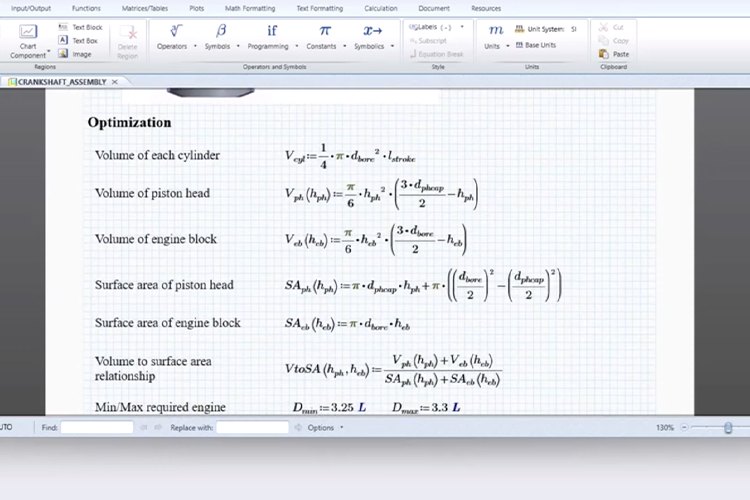
Engineering Notebook worksheet with natural equations for an engine geometry relationship
A source worksheet example shows natural mathematical notation, documented relationships and the context around a calculation.
Keep the method close

From a dimension to an engineering argument.

Ask a colleague to explain why the dimension was chosen using the worksheet alone. Their questions reveal which assumptions or acceptance criteria still need to be documented.

A role for the reasoning

Design. Analyze. Share the method.
Find your role in Engineering Notebook.

Choose the worksheet around the decision and the person responsible for it. Design, analysis and method ownership each need a different view of the same calculation.

Product design engineers

Which design dimension should the calculation inform?

Bring a part or assembly and one engineering relationship that influences its size or shape. Use the worksheet to explain the method and connect the chosen parameters to the design.

Useful outcome
An embedded calculation with named inputs and a reviewed output.

Explore Creo modeling tools

Mechanical analysts and specialists

What assumptions make the calculation useful?

Use the model context to keep a sizing or analytical check close to the geometry. Record the simplifications and applicable conditions, and select a separate simulation study when the question needs more detailed physics.

Useful outcome
A documented method and a clear boundary between a worksheet check and further analysis.
Explore Creo simulation

Engineering teams and method owners

How will the next engineer understand the reasoning?

Agree naming, units, review responsibilities and the method for reusing a worksheet. An embedded copy belongs to its model context; plan how approved methods are maintained and introduced into later work.

Useful outcome
A repeatable calculation practice with ownership and review criteria.
Explore engineering calculations
Industry Applications

Different products.
Clear calculations for critical decisions.

Start with a relationship that matters to your product and the evidence your engineering team needs to review it.

Scroll or swipe to explore all 5 industries. Use Tab to reach each industry link.

Engineering Notebook FAQ

Before you connect.
Know how Notebook works.

Resolve update direction, model scope and entitlement before introducing a shared calculation workflow.

How is Engineering Notebook different from standalone Mathcad Prime?

Engineering Notebook provides Mathcad-based worksheets in the Creo model context. Standalone Mathcad Prime serves engineering calculations outside CAD and has its own licensing. A standalone Mathcad license is not a substitute for the Engineering Notebook entitlement used by current Creo releases.

Do model and worksheet values update continuously in both directions?

Use the defined input/output workflow. After changing model inputs, update the worksheet inputs. After reviewing calculated outputs, use Save and Push and check whether the Creo model needs regeneration. A connection does not replace review of the current inputs and resulting geometry.

Which Creo package includes Engineering Notebook?

Current Creo Help identifies the feature within the T2–T5 license families, starting with Creo Design Advanced. Package names and release requirements should be confirmed for the environment you plan to use. The optional Notebook application must also be installed with Creo.

Can every model share the same live worksheet?

A model can contain one embedded worksheet; assembly components can have their own. An inserted worksheet is embedded in that model context and is not a live link back to its original worksheet file. Plan ownership and reuse accordingly.

Can I use calculations to set any model value?

Only the designated and connected values participate in the exchange. Review parameter direction, units and Creo relations, along with limitations for model features such as Family Tables and flexible components. Test the actual model and release before standardizing a workflow.

Does an embedded worksheet validate the design automatically?

No. The worksheet records and evaluates the mathematical method you supply. Appropriate assumptions, engineering review and any further simulation or physical verification remain part of the design process.

Your connected calculation

Bring your design question.
Plan the calculation workflow.

Tell us which calculation influences your Creo design and how the result should be reviewed.
TriStar can help scope the package, parameter exchange and adoption approach around your engineering work.

Talk to an expert
Start a conversation

What would you
like to connect?

Select a priority to start the conversation.

Choose a priority above.