
Help catch unit errors
Assign units when you define variables and examine the result in the units your team uses. A load entered in kilonewtons and a length entered in millimeters can still be checked together for dimensional consistency.

Write engineering calculations in the notation you use on paper. Keep units, plots, assumptions and results in the same worksheet, so someone else can check how you reached a decision and see what changes when an input changes.
Mathcad Prime organizes a calculation as a worksheet: define the inputs, develop the mathematics and explain how to interpret the result. A colleague can follow that sequence when reviewing the work or adapting it for another project.
An engineering worksheet can carry the full record of a design check, including the drawing or reference table that supplied the inputs, the equation used to evaluate them and a plot that shows where the result approaches a limit.
Record the source, value and units for each quantity the method depends on.
Show the equation and assumptions so a reviewer can follow each step.
Compare the result with the requirement and show when it would change.
A worksheet is most valuable when it can survive a handoff. Keep the information a reviewer needs next to the calculation, from the source of a dimension to the conditions under which the method applies.
Assign units when you define variables and examine the result in the units your team uses. A load entered in kilonewtons and a length entered in millimeters can still be checked together for dimensional consistency.
Start with a check your team runs regularly. Record which inputs can change, which design assumptions must hold and one known case to run after someone updates the template.
Put the requirement beside the result it governs. If a design only clears a limit at a specific temperature or load, record that condition where the reviewer makes the comparison.
Choose the tool that answers the next question in your worksheet. A unit check can expose an input error, a solver can find a feasible value, and a plot can show how sensitive that value is to a change.
Will these inputs work together?
Assign SI, USCS, CGS or custom units to variables, then present results in the unit system your audience needs.
When a supplier gives torque in pound-force feet but your acceptance criteria use newton-meters, enter the published value with its original units. Show the converted result beside the criterion so a reviewer can check the comparison without hunting for a separate conversion.
Watch units videosWhich design meets the constraints?
Work with linear, nonlinear and differential equations, or search for minimum, maximum and optimal values.
If you need to size a pump, write the required flow and pressure as constraints before you search for a candidate. Record the starting values and bounds, then substitute the candidate back into the original equations to check what it satisfies.
Watch solving videosWhere does the response approach a limit?
Use 2D, 3D, polar and contour plots to examine relationships and communicate how a result changes.
For a load sweep, put the applied load on the horizontal axis and the calculated deflection on the vertical axis. Label both with units and show the allowable deflection so a reviewer can see where the margin narrows.
Watch plotting videosHow does the equation depend on each input?
Manipulate expressions before assigning numeric values, using Mathcad’s symbolic engine alongside numerical calculation.
Rearrange a pressure-drop equation to isolate the quantity you need to size. Keep the symbolic relationship visible, then evaluate it with a representative set of values. A reviewer can trace which assumptions affect the result before comparing numbers.
Watch symbolic videosWhen should the calculation change course?
Build calculation logic with natural mathematical notation, loops and conditional statements.
If a design standard calls for a different equation above a threshold, use a conditional branch and cite the rule next to it. Test cases just below, at, and above the boundary so reviewers can see which path the worksheet takes.
Watch programming videosWhich choices should users be able to make?
Give inputs a clearer entry point with sliders, lists, checkboxes and buttons, including scripted controls.
Use a list of approved material grades for a worksheet the team will reuse. Connect the selection to the properties the calculation needs, then display the active grade and values next to the result so a reviewer can reproduce the case.
Watch controls videosChoose where each value is maintained. Excel might own a material-property table while Mathcad owns the equations that use it. A Creo model may supply geometry while the worksheet returns a calculated parameter.
Use the Excel component when a workbook holds source data such as material properties. Record the cells, units and table revision that the worksheet relies on. Test a representative workbook with supported Mathcad and Office versions, then check that a change in Excel produces the expected result in Prime.
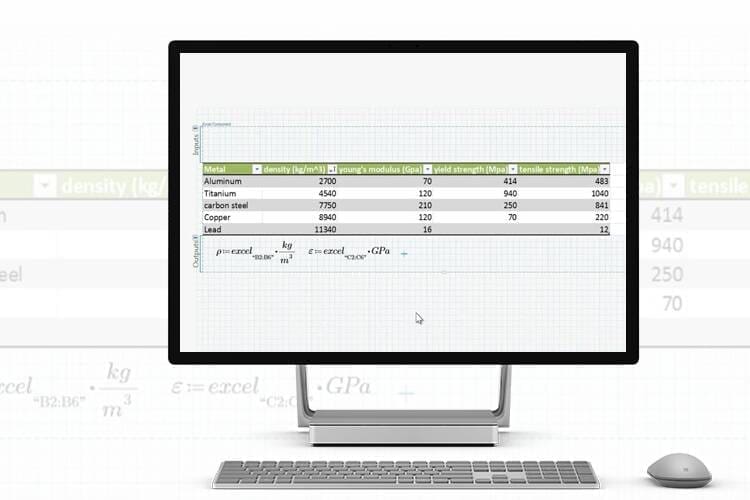
Creo Engineering Notebook embeds worksheets in a model to exchange geometry or calculated parameters. Choose which tool owns each value and test how it updates. Access depends on the Creo release and package. A standalone Mathcad license does not cover the Notebook included in Creo 12.4 and later.
Explore CreoInclude representative older worksheets in the evaluation. Check conversion guidance, required features, units, and results before relying on converted content. Keep the original files and document the review.
Use this table to check which worksheet functions are available in limited Express and which require full Prime. It compares functionality; the license options below explain how access to full Prime is allocated.
| Capability | Mathcad Express | Mathcad Prime · Full license |
|---|---|---|
| Core worksheet | ||
| Natural mathematical notation | Included | Included |
| Algebra and trigonometry | Included | Included |
| Unit support | Included | Included |
| PTC watermark and marketing start page | Required | Not required |
| Advanced calculations | ||
| Worksheet programming | Not included | Included |
| Linear and nonlinear equation systems | Not included | Included |
| Symbolic evaluation | Not included | Included |
| Design of experiments and differential equations | Not included | Included |
| Fourier transforms and signal processing | Not included | Included |
| Regression, statistics and data analysis | Not included | Included |
| Data and presentation | ||
| Excel component | Not included | Included |
| Worksheet templates | Not included | Included |
| XY plotting | Basic features | Included |
| Advanced XY, polar, contour and 3D plots | Not included | Included |
| Basic combo-box input | Not included | Included |
| Scripted controls: Python, VBScript and JScript | Not included | Included |
Both editions support units; custom unit systems require full Prime.
Express includes basic XY features. Full Prime includes the advanced plotting capabilities listed above.
PTC offers a 30-day full trial, followed by limited Express if you do not upgrade. Express is not for commercial use. During the trial, open a representative worksheet and check the features your work depends on, including any solver, templates or Excel connections.
Once you have chosen full Mathcad Prime, plan how access will be allocated. A locked license is assigned to a designated computer; a floating license lets a team share a server-managed pool. Consider where engineers run worksheets and how often their use overlaps, then discuss the arrangement with TriStar.
The license is tied to one designated computer. This suits a workflow based on the same workstation, such as an engineer’s regular calculation setup. Identify the computer that will run Mathcad when planning your license requirements.
Which computer will run the worksheets?
A license server manages concurrent access up to the number of seats purchased. This suits teams that share Mathcad at different times. Plan the pool around peak simultaneous use, and involve your IT team when arranging the license-server connection.
How many people need access at the same time?
One-year licenses include support and maintenance. Licenses must be used in the country where purchased. Confirm your access requirements and license terms with TriStar.
Discuss licensing with TriStarPrime 12 changes how worksheets render, how you present native plots and how you investigate functions. If you are planning an upgrade, use a working calculation to compare the output, plot labels and document layout before rolling it out.
PTC delivers a major release and a maintenance release each year.
Prime 12 major-release highlights. The maintenance update focuses on stability, reliability and security improvements.
Performance updates improve rendering. Try a representative worksheet with several plots and calculations to see how it feels in your workflow.
Add titles, axis titles, gridlines and a legend to native 2D plots. For a load sweep, label the axes and distinguish each load case where the plot appears.
Use symbolic analysis to investigate properties such as extrema and continuity. This can help identify where a response changes direction before you evaluate a particular operating range.
MultiStart explores multiple starting points and increases the likelihood of finding a global solution. Check candidate results against your constraints and engineering expectations.
Find and replace subscripted identifiers throughout a worksheet. After renaming a variable, re-evaluate the worksheet and check any text that describes its meaning.
Customize page numbering in headers and footers and use larger page sizes. Preview a report with a wide plot or table to check how it reads when exported.
Five perspectives on the work behind a design decision: choosing a calculation environment, applying it across three engineering disciplines, and connecting the reasoning to spreadsheet data.
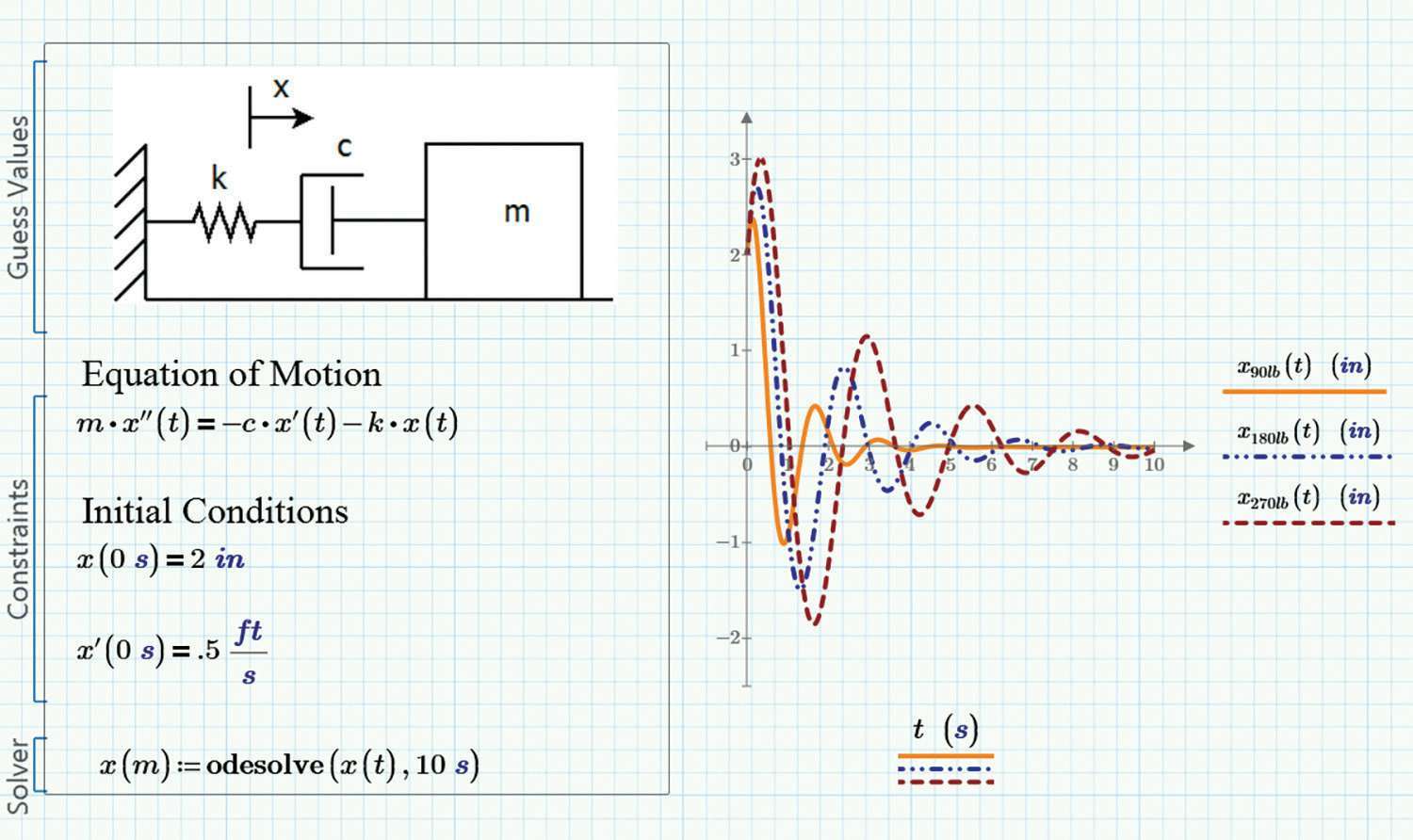
Start with the engineering question: what is being sized, compared or checked, and under which conditions? In Mathcad, a recurring calculation can become a worksheet that colleagues can inspect and adapt, with the chosen method and its limits available alongside the result.
Explore engineering calculations
Document how a load case and material properties affect stress or strain in a structural member, with the chosen method and design criteria available for review. A wind-turbine tower is one example: compare loading assumptions and explain how they inform the structural assessment.
Explore energy & resources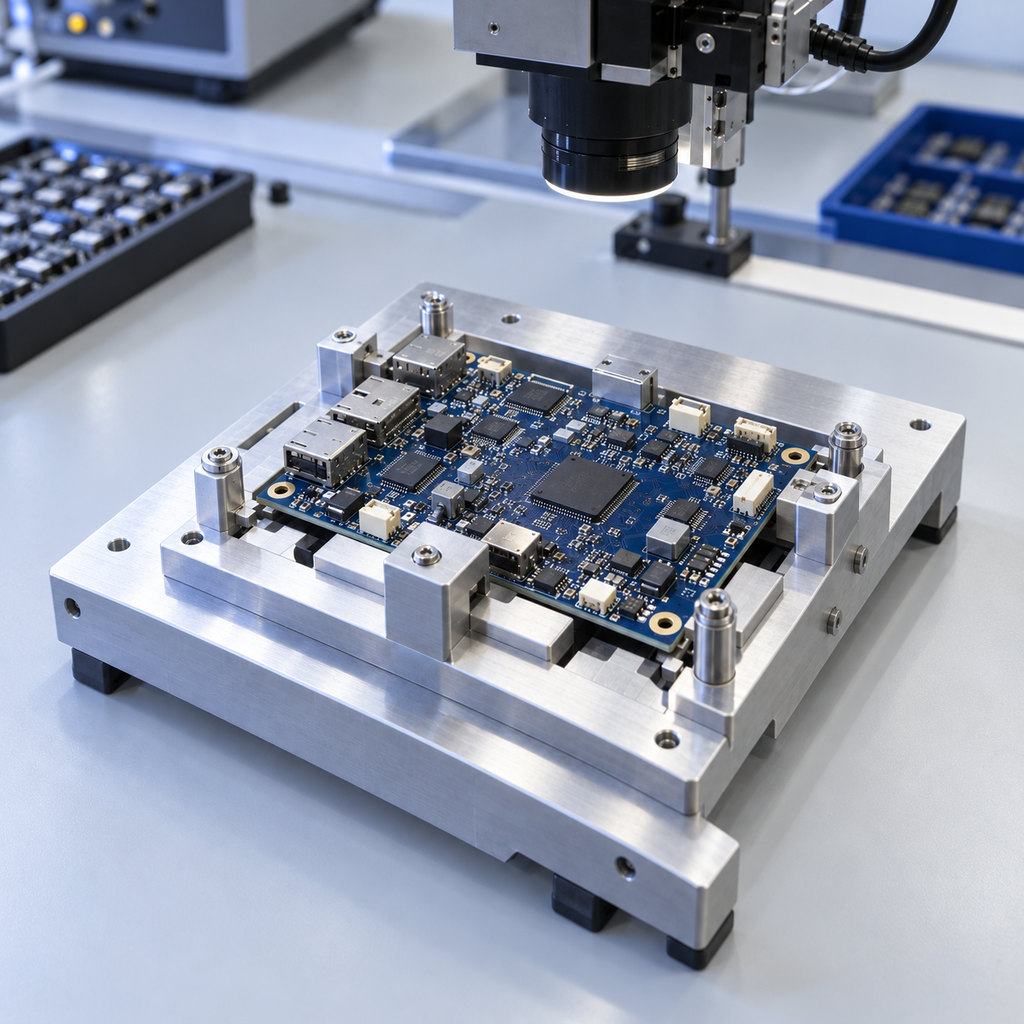
Work through a circuit, power or signal calculation and compare the response as inputs or operating conditions change. For an electronics module, examine component choices, power dissipation or a filter’s response before discussing the trade-offs with the wider product team.
Explore electronics & high-tech
Use a worksheet to examine a component’s stress, motion, efficiency or friction, then explain how the loads and operating assumptions affect the result. For a conveyor drive, investigate torque, speed and duty conditions to support the choice of mechanical components.
Explore industrial machinery
Keep Excel where tables and familiar workbook workflows are useful, while developing the engineering reasoning in Mathcad. For a material-property table, identify the values and expected units before using them in the calculation, so the source data and the design interpretation remain clear.
Explore calculation workspaces See the Excel connectionCheck the platform and connection requirements before planning your Mathcad setup.
Prime 12 lists 64-bit Windows 11 versions 23H2, 24H2 and 25H2, plus .NET 10.x, a TCP/IP network adapter and a compatible pointing device. Allow 670 MB for the application, 56 MB for the language converter, 75 MB per local help language and temporary installation space. Use a Microsoft-supported Windows release.
The Excel component lists 64-bit Microsoft Office 2021, Office 2024 and Microsoft 365 desktop applications. Reported integration issues are tested on Microsoft-supported Office releases. Confirm your Mathcad and Office combination before deployment.
Use the Creo Engineering Notebook route described in Connections. Confirm release and package entitlement and the values that the worksheet and model need to exchange. Review the Creo connection
Bring a calculation you need to explain, a worksheet library you need to move, or a team that needs access to Prime. TriStar can help you plan licensing, training and worksheet support.
Talk to a Mathcad specialist