Keep the structure
Retain useful tables, schedules and existing workbook knowledge.

Keep the workbook knowledge your team relies on. Give the equations, units and reasoning behind it a clearer place in the engineering process.
Explore the workflow
Excel is useful for organizing engineering data, building cell-based calculations and charting results. The next question is how someone else will understand the method. Mathcad Prime brings equations, units, explanatory text and plots into an engineering worksheet, while defined connections let spreadsheet data remain part of the work.
Explore Mathcad Prime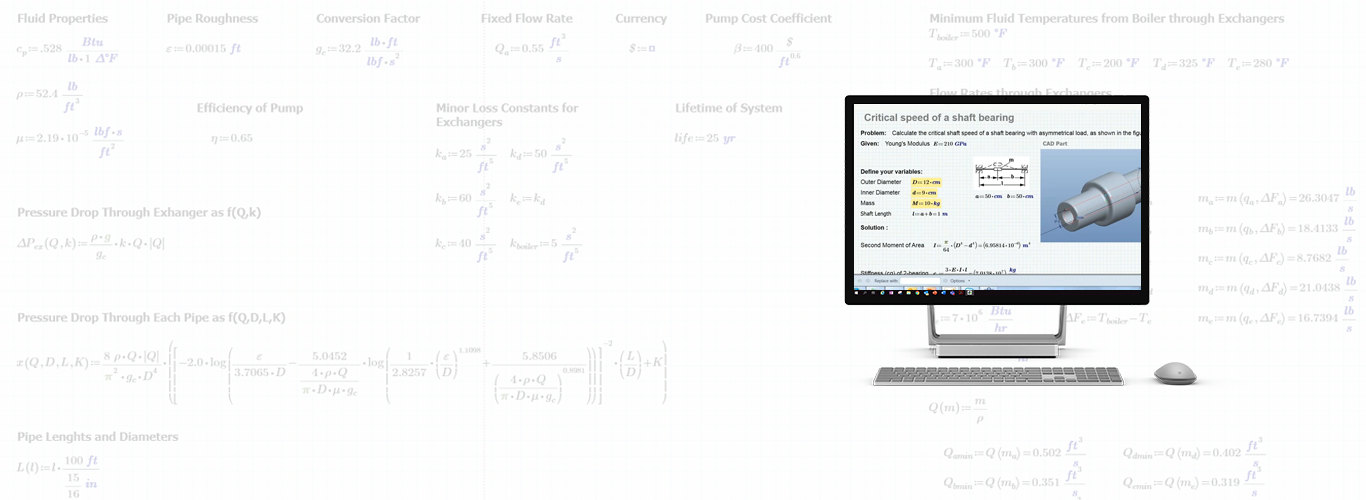
Retain useful tables, schedules and existing workbook knowledge.
Make assumptions, equations and the reason for a design decision visible.
A spreadsheet can support a well-controlled calculation. Clear units, traceable formulas, defined inputs and recorded assumptions help the next engineer understand what can be reused. Open each question to see how the workbook and an engineering worksheet can support that review.
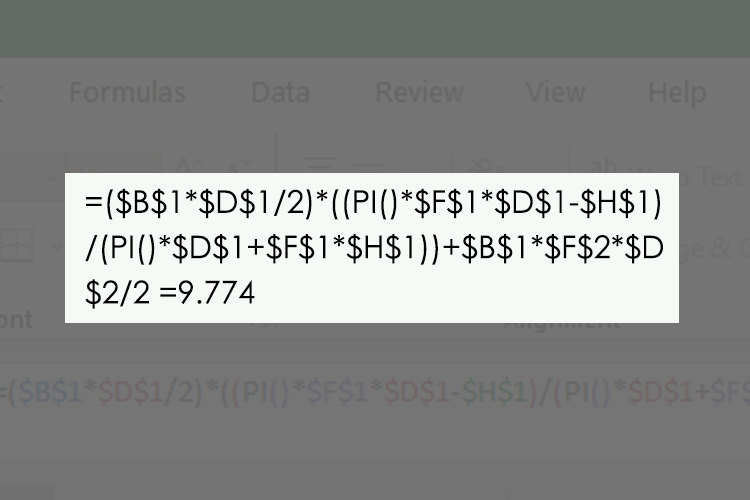
Excel’s CONVERT function handles selected unit conversions. The workbook author still needs an explicit units convention. In Mathcad, units can be attached to variables and carried through expressions.
Excel provides formula auditing and precedent/dependent tracing. Use them with clear names and a visible calculation path; Mathcad’s natural notation offers another way to present the equations themselves.
Excel data validation can restrict entries and show guidance. Define permitted inputs, test those rules and distinguish editable values from the formulas they feed.
Record assumptions, source references and the calculation’s limits. A numerical answer alone does not explain when the method should be reused or who should review it.
Use this comparison to decide where data and reasoning are maintained. Excel can organize the source data while Mathcad explains the mathematics that uses it. The connection options below describe how defined values move between those contexts.
| Working need | Excel | Mathcad Prime |
|---|---|---|
| Data & structure | Cell-based tables, workbook formulas and charts for organizing and exploring data. | Variables, matrices, tables and plots alongside the calculation that uses them. |
| Mathematical expression | Cell formulas with workbook naming, comments and auditing tools to explain the logic. | Natural mathematical notation with numerical and symbolic calculations in one worksheet. |
| Units & explanation | An authored units convention, selected conversions and supporting workbook documentation. | Units attached to engineering variables, with explanatory text beside the mathematics. |
Both approaches still need an appropriate engineering method, reviewed inputs and results checked against a known case.
Consider a workbook of measurements or supplier data that feeds a design calculation. Decide whether its Excel calculation should live within the Mathcad worksheet or remain in a separate file. These two paths exchange defined values; neither automatically translates Excel formulas into Mathcad notation.
Mathcad Prime 12 includes changes worth reviewing when spreadsheet data becomes part of an engineering document. Use one familiar worksheet to check how its plots and embedded tables communicate the calculation to another reader.
Native 2D plots can include titles, axis titles, gridlines and legends. Use these to explain what the selected data represents.
Embedded OLE objects retain higher display quality during zooming, resizing and export. Check how the table reads beside the calculation.
Use these suggested starting points to frame a discussion with your engineering team. Keep the data source, units and operating assumptions available for review.
Use selected values in a pressure-drop review. Keep fluid assumptions and the calculation method with the data so another engineer can follow the operating case.
Explore energy & resourcesCompare operating points from a test table. Record the test conditions before carrying selected values into an engineering worksheet.
Explore electronicsExplain how dimensions and load assumptions inform a sizing calculation. Keep the selection reasoning visible instead of handing off a result alone.
Explore industrial machineryUse one representative workbook to explore a practical Excel–Mathcad workflow before considering a wider library. Bring a known comparison case and the people who maintain and review the calculation. TriStar can use that context to help scope the evaluation and its next steps.
Discuss your calculation workflowChoose a calculation with a clear purpose and a result your team already understands. Identify its owner, intended users and the decision the worksheet supports.
Agree what the pilot should cover and what a reviewer needs to see. Define the starting information, expected outputs and assumptions that must remain with the work.
Compare the pilot with the known case using agreed review criteria. Capture differences, open questions and follow-up actions in a short review note, with a named owner before the approach is extended.
Yes. Identify the tables and calculations that are already useful, then decide which data or reasoning needs a clearer engineering worksheet. A representative example is a better starting point than assuming everything must be replaced.
No automatic formula translation is implied. An embedded component uses Excel’s calculation capability; file functions exchange range data. Rebuilding an equation in Mathcad is a separate authoring and checking task.
Consider an embedded component when the Excel calculation should live inside the Mathcad worksheet. Consider file exchange when a saved workbook remains the source or destination for a specified range. Check the operating environment and review process for the chosen approach.
The Engineering Calculations parent page explains method review and calculation-driven design. The Mathcad product page covers the dedicated worksheet environment, features and access options.
Let’s identify one useful workbook-to-worksheet workflow for your team.
Start a conversation