Keep a review copy
Use Save As to create a working copy. Keep the first Prime conversion with its annotations so reviewers can distinguish changes made by the converter from edits made later.

Move legacy Mathcad worksheets into Mathcad Prime with a review plan for the formulas, units, and results your team relies on.
View conversion steps
Mathcad Prime cannot open legacy worksheets directly. The XMCD, MCD Converter creates a Prime copy so you can review older calculations in the current worksheet format.
.mcd · .xmcd · .xmcdzThe original stays intact. Keep any referenced worksheets with it so you can identify the files the calculation depends on.
.mcdxThe converter creates a separate file with the same base name in the original folder. You can queue several worksheets, which the converter processes one at a time.
Use the log to locate warnings and failures. Review affected regions in Prime before relying on the results.
Run a small pilot before moving a full library. At each step, check what Prime shows you before handing the converted files off for review.
Open the Input/Output tab in Mathcad Prime and launch the converter. If the command is grayed out, run the Prime installer again and select the worksheet converter.
Before moving on The converter window opens in Prime.
Start with a worksheet that has a known result and at least one dependency your team actually uses. Add the legacy files from their current folders and use Add References to identify any linked worksheets that also need conversion.
Before moving on The queue includes the pilot files and the references they need.
Select the pilot files and start conversion. The converter runs through the queue one worksheet at a time. Note any failed files and use the log to identify warnings that could affect calculations.
Before moving on You know which files converted and which regions need review.
Open the new .mcdx files directly from the converter. Keep the original worksheets and conversion logs available so the reviewer can compare the two versions.
Before moving on The Prime files are ready for cleanup and validation.
After conversion, save a working copy and check that the calculations run in Prime. Then restore the printable layout so reviewers can follow the worksheet from inputs to results.
Use Save As to create a working copy. Keep the first Prime conversion with its annotations so reviewers can distinguish changes made by the converter from edits made later.
On first open, question marks can appear where results are expected. Run Calculate Worksheet from the Calculation tab. If a region still does not evaluate, inspect the inputs and references it depends on.
Start with log entries that flag a failed or unsupported region. Open the marked regions to see their annotations and record how you resolved each issue. Use Clear Annotations only after validation.
Turn on the grid from the Documents tab and inspect Page View. If content extends into Draft View, try adjusting paper size, orientation, or margins before moving regions.
Legacy headers and footers do not carry over. Remove leftover artifacts and restore the information your team relies on, such as the worksheet identifier and revision.
Use Remove Space in the Documentation tab to close empty gaps. Then scan Page View to make sure each plot, result, and note still appears with the material it explains.
Run the converted worksheet against a known reference case. Compare the results that drive your decision and record any differences before your team relies on the Prime file.
Use the original worksheet and its recorded results. If you no longer have access to Mathcad 15, select the legacy file in the converter and choose Save as HTML. The converter saves a readable snapshot alongside the source file.
Use the snapshot to inspect the original inputs and displayed results. Run the calculation in Prime to verify the converted results.
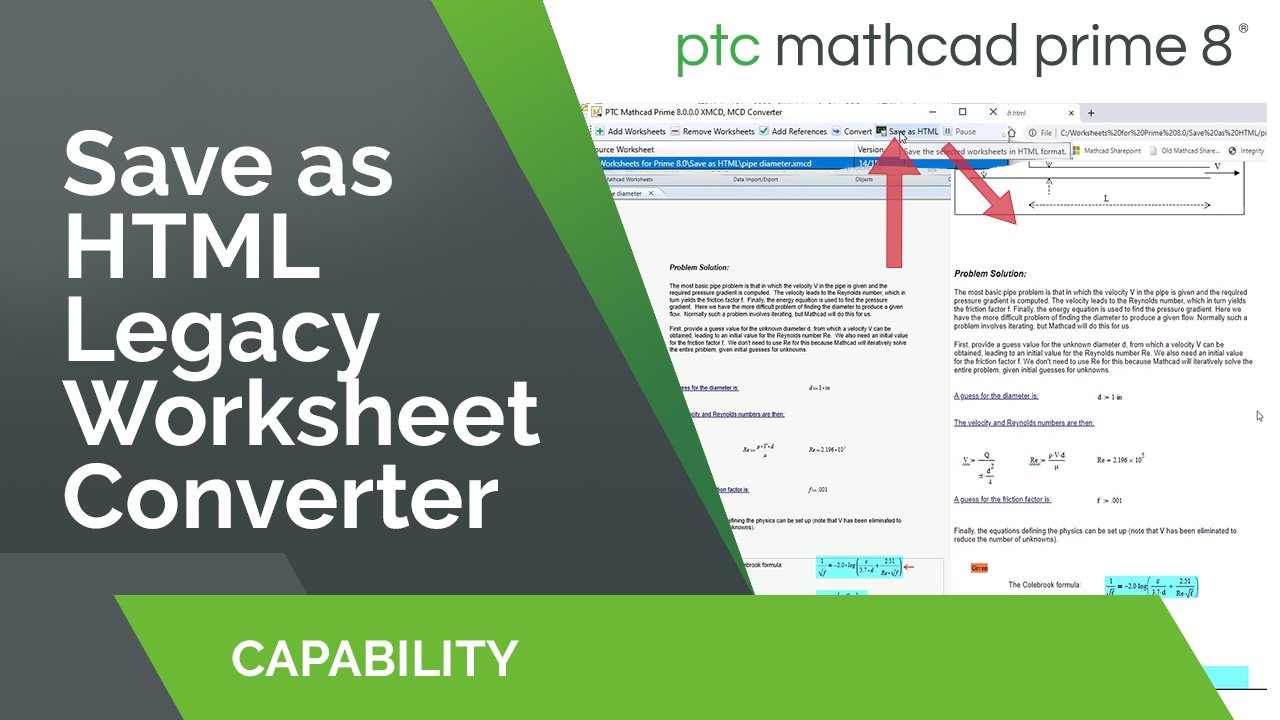 Watch Save as HTML Converter
Use the guide for conversion issues, the comparison chart for capability questions, and the video playlist for a walkthrough you can follow with your own files.
Use the guide for the converter procedure, annotated differences, and troubleshooting for regions, plots, and calculations.
Find capabilities that need closer review before moving a template. Confirm requirements against the Prime release you plan to use.
Watch the conversion walkthroughs alongside your pilot worksheet. Ribbon labels and the interface may differ by release.
Choose a pilot that reflects a real engineering decision, with inputs and results your team can check.

Convert a sizing worksheet for a machine family. Compare the input units, load assumptions, and selected outputs across representative configurations.
Explore Industrial machinery
Pilot a thermal or power-budget worksheet. Check linked inputs, unit conversions, and the plotted operating range before reuse.
Explore Electronics
Start with a previously reviewed calculation. Keep the reference results, resolve conversion differences, and route the Prime copy through your established review process.
Explore AerospaceUse these answers to scope the first batch and plan the checks that follow.
The converter creates a separate Prime file in the source folder. Keep the legacy originals and conversion logs as part of your review record.
The standalone converter included with Mathcad Prime can convert supported legacy files without a legacy installation. Confirm that the converter component is installed.
The Prime 12 migration guide covers MCD, XMCD, and XMCDZ worksheets and MCT and XMCT templates. Check the guide for the release you will use and review any unsupported features.
Use the optional HTML export when you need a readable reference for comparison. For results that drive engineering decisions, compare against a trusted baseline with known inputs.
Start with a representative batch covering linked worksheets, templates, custom units, and plots. Use the pilot to identify which files need manual review before converting the rest.
Identify the files, dependencies, and results that matter before moving a larger worksheet library.
Talk to an expert