Speed
See the direction sooner.
See materials and lighting update as you explore options. Real-time feedback helps the team compare directions before committing to the next visual.

From a first finish study to a memorable product launch, make every view count. Create images, animation, and interactive experiences with KeyShot—and give your audience more to explore.
Explore KeyShot StudioKeyShot is 3D product visualization software for design, engineering, and marketing teams. Turn supported 3D data into product images, animation, and interactive presentations that help people explore appearance, understand a product, and tell its story.
See materials and lighting update as you explore options. Real-time feedback helps the team compare directions before committing to the next visual.
Physically based materials and lighting bring texture, reflections, and transparency into view. Show the intended appearance with the surface detail that makes a product convincing.
Import a model, drag materials onto parts, and choose lighting and camera views. Familiar actions make it easier to start exploring a product in 3D.
Bring supported 3D data into KeyShot Studio, shape its appearance, and build a coordinated set of views. Explore the speaker example: choose a finish in Scene and see it carry into Outputs and Reuse.
For this speaker launch, compare three finishes before choosing a direction. The source model establishes the product; the audience and intended use guide the view.
Product geometry + visual brief
Decide what the audience needs to understand: a finish choice, a feature, or a new product. Agree the required views, image sizes, animation length, and delivery channels before building the scene.
Apply materials, shape reflections, and compose camera views around the same model. Choose Coral, Mist, or Graphite to carry that finish into the next views.
Material + light + camera views
Start with drag-and-drop materials, then use the Material Graph for layered finishes, procedural textures, labels, masks, and surface detail. The real-time preview helps you assess changes as you compose.
Use HDRI environments, the HDRI Editor, and physical lights to control reflections and highlights. Save camera views with the perspective and depth of field each deliverable needs. Confirm feature availability for the selected Studio license.
Create a product-page image, a reveal sequence, or a presentation from the scene. Each format answers a different need; the selected finish stays consistent across this example.
Images + motion + presentation
Combine model, camera, material, and environment animation to guide attention. A turntable explains form, an exploded sequence shows component relationships, and a camera move reveals a different point of view.
Retain materials, camera views and scene setups for the next variation. Return to a prepared Studio scene when the product changes or another presentation is needed.
Reusable scene + prepared views
Use Model Sets for model arrangements and Multi-Materials for alternate appearances. Studios can recall selected cameras, environments, image styles, and variations; the Configurator presents prepared model and material choices. Confirm these features in the selected Studio license.
Decide whether the next review needs images, animation, a shared browser scene or a headset experience. Match Studio Web or Studio VR to that audience and setup.
Supported import and LiveLinking workflows can bring revised geometry into an established Studio scene while retaining its visual setup. Review the updated model and resulting views before publishing.
Confirm the supported source format, plugin, software versions, and selected Studio license for your environment.
Use AI Shots to explore visual possibilities alongside your Studio work. Generate styles, settings, and early concepts locally, then bring a considered direction into the next conversation.
Explore alternative material and lighting directions from a prompt while retaining the original layout. Use the results to discuss a visual direction before refining the production scene.
Electronics & consumer productsGenerate a different environment around the rendered product while retaining the scene’s geometry, materials, and lighting. Explore a campaign setting or a new product-use context.
Product launches & industrial marketingGenerate new concept imagery from a prompt without being constrained to an existing scene. Give an early design or packaging discussion something concrete to respond to.
Early product & packaging conceptsAI Shots is included with a KeyShot Studio subscription and runs locally after the initial model download. Hardware and memory affect performance. Generated imagery supports visual exploration.
Explore Studio AIA finish comparison, an assembly explanation, a seasonal range. Explore the specific visuals teams can create with KeyShot—and the people those visuals help.
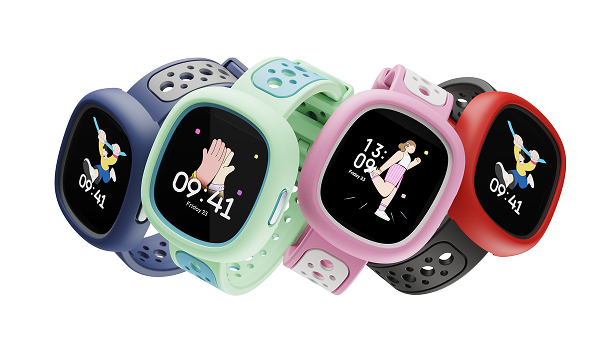
Compare enclosure colors, surface finishes and accessories under a consistent lighting setup. A coordinated composition makes the differences between devices easy to discuss with design, brand and product teams.
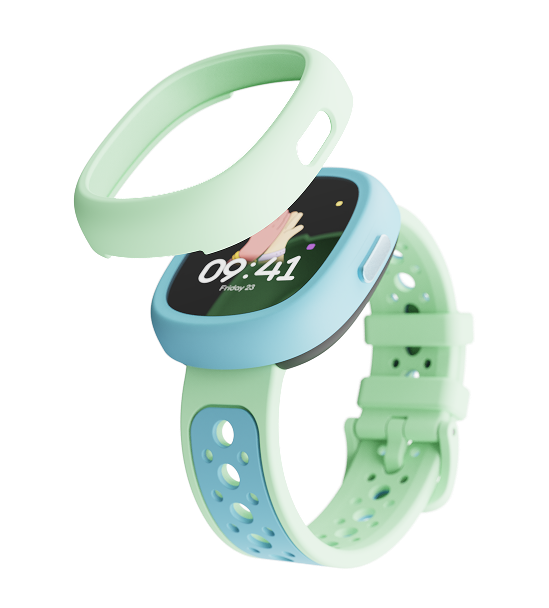
Lift the external bezel above the intact watch face and strap to make their relationship visible. Deliberate spacing and a clear camera view help a technical audience discuss the exterior construction while keeping the complete device in context.
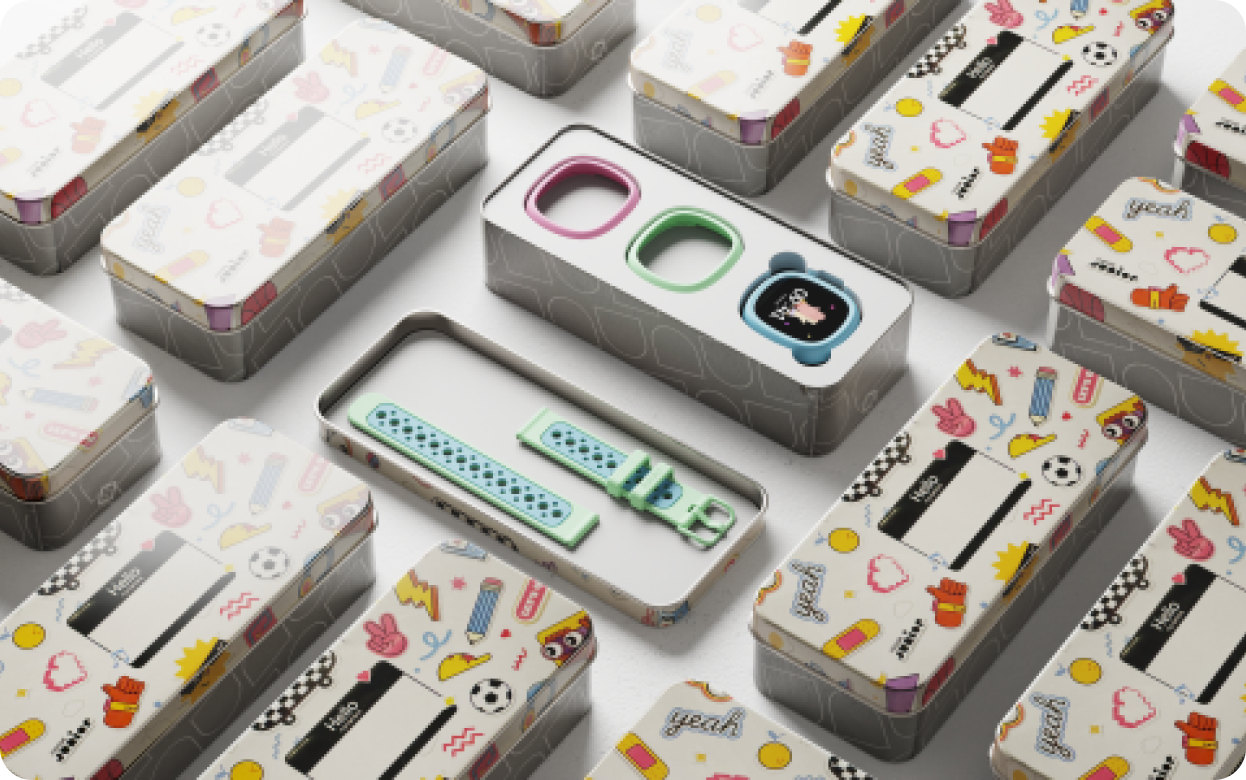
Bring hardware, accessories and retail packaging into the same composition. Product and packaging teams can review the presentation together, then prepare views for launch planning, retail conversations and unboxing stories.
Follow the components of a compact machine as they move into place. Deliberate movement and a clear viewpoint help technical writers, trainers and customers follow relationships that are difficult to see in the assembled equipment.
Reveal the rotor, shaft and fan within an electric motor while retaining its surrounding housing. A cutaway connects hidden components to the exterior form, giving design, sales and service conversations a shared visual reference.
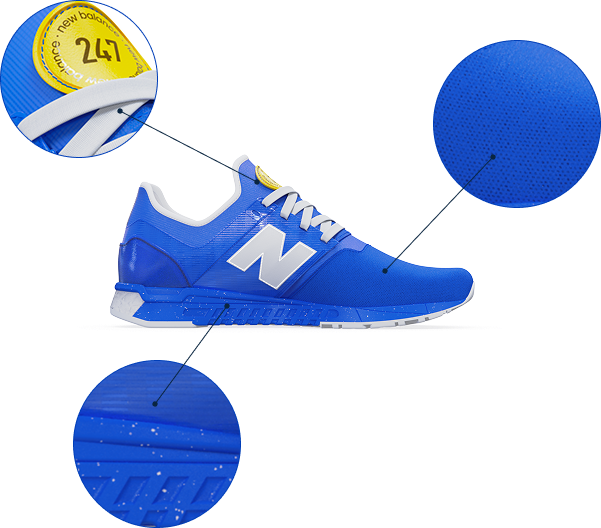
Review a rotating shoe alongside its material references, then bring mesh, lacing and sole construction into close view. The material board and focused details give design and buyer conversations specific surfaces to discuss.
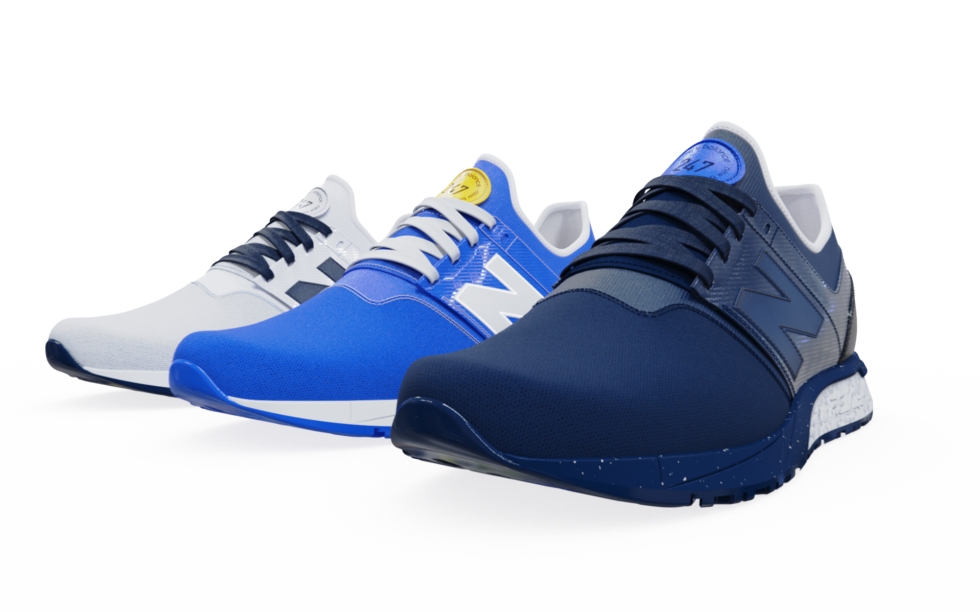
Compare white, blue and navy variations in a coordinated collection. Consistent framing and lighting help buyers see the range as a whole, with product views that can also support line reviews and online product pages.
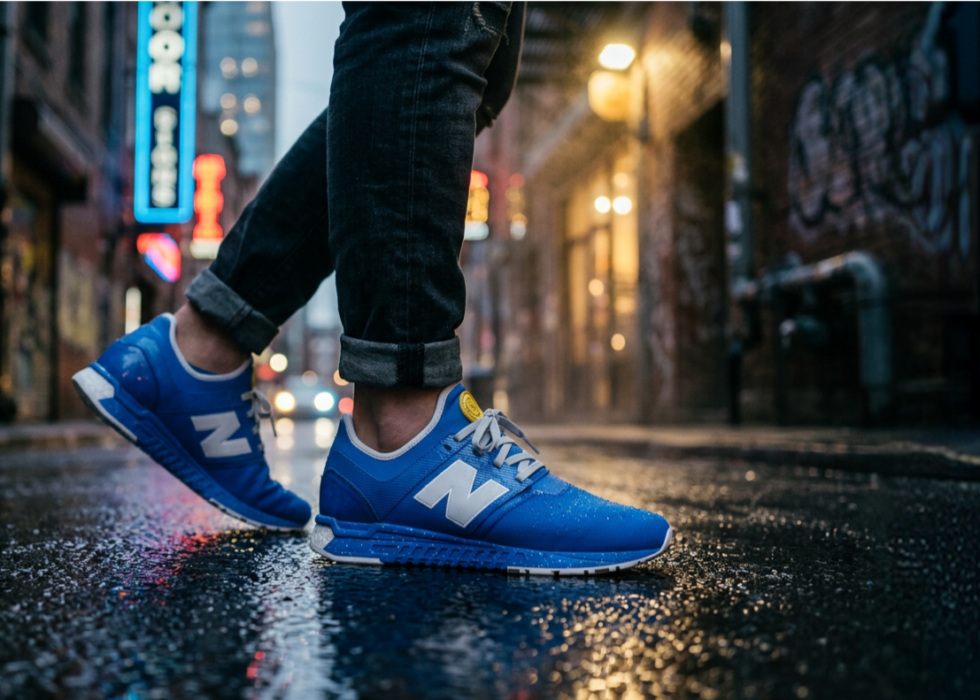
Take the product beyond a neutral studio view. Build a composition around the audience, season and channel, using camera and environment choices to prepare campaign, lookbook and lifestyle imagery from the product scene.
Step into your Studio scene with a compatible PC and headset. Explore the product at scale, compare its appearance and bring colleagues into the same virtual review.
Move around the product, change user scale and use move and measurement tools to examine proportions and spatial relationships.
Bring prepared Model Sets, Multi-Materials, cameras, environments and animation into the discussion. Compare a finish or lighting direction from a different viewpoint.
Studio VR Connect brings participants into one session with matching scene versions. Plan the local network or VPN connection around the people taking part.
Start with a saved Studio scene and the design question to explore. Check the Windows workstation, graphics hardware, supported headset and its connection. For a shared session, prepare the same scene version and the network access participants need.
Bring product exploration into a browser. Choose a shared 3D scene, prepared product variations or a rendered 360° presentation around what your audience needs to see.
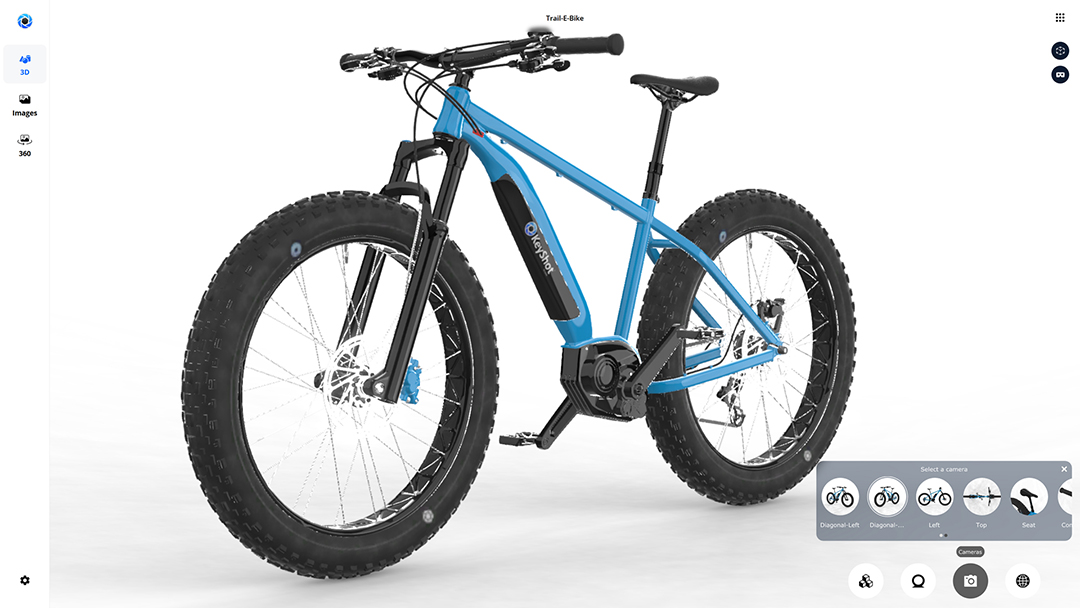
Upload a supported scene to KeyShot Drive so people can explore it in a desktop or mobile browser.
Present model and material variations for comparison. Choose a Web Viewer scene or a rendered Web Configurator output to suit the experience.
Let people rotate, zoom and explore the product, with design information that helps a review move forward.
Create a rendered-frame experience people can turn through on a website. Use 360/XR output when the authored views and visual quality are the priority.
Build visualization skills for individual design projects and shared classroom work.
For eligible full-time students and academic staff. Develop product visuals with the Studio toolset, KeyShotXR and local Studio AI.
For learning purposes only. Files created in Studio EDU do not open in other KeyShot versions.
Bring visualization into design and engineering classes. Lab packs provide Education subscriptions for a specified number of users during the academic year.
Discuss lab pack pricing, education discounts and the right quantity for your institution.
Use a supported product model to test import and updates, material and lighting control, camera composition, and a target image or animation. Include the expected workstation, reviewers, and delivery format in the evaluation.
Plan an evaluation with TriStarThe current standard Studio trial is 14 days. Output is watermarked; saving, Background Rendering, and Rendering Queue are unavailable. Confirm current terms and compatibility before beginning.
Choose the creation, review and sharing workflow around your team’s work.
Studio turns supported 3D models into product images and animation. Teams develop materials, lighting, cameras and movement to communicate appearance, explain a feature or prepare a product launch. Reusing the scene helps keep later views and variants consistent.
No. Studio creates product visuals from supported geometry. CAD remains the authored design, and engineering evidence remains necessary for tolerances, material decisions, analysis and manufacturing approval. Use the visual review to communicate the product and explore presentation choices.
Studio AI supports image exploration and editing alongside the 3D scene. Restyle explores visual directions, Background creates a setting around the product, and Imagine develops concepts from a prompt. It runs locally with a Studio subscription after the initial model download. Generated imagery does not edit the engineering model; develop the selected direction through the scene and normal review workflow.
Prepare the scene in Studio, then open it in Studio VR for a compatible PC and headset experience. Explore scale, materials, environments, cameras and animation. Move and measurement tools support spatial review, while VR Connect enables shared sessions with matching scenes and the appropriate local network or VPN connection.
Studio VR places the review in a headset environment. Studio Web delivers product exploration through a browser, including shared scenes and interactive presentations. Choose VR for an immersive spatial review and Web when people need to open a link, compare prepared choices or explore a product on a website.
Web Viewer shares an interactive 3D scene through KeyShot Drive and can include prepared product variations. A rendered Web Configurator presents authored model and material choices through images, with defined views. KeyShot 360° uses rendered frames for an interactive rotation; the 360/XR export creates a .360 file that can also be attached to a Web Viewer upload. Select the output around camera freedom, visual quality and delivery needs.
They have distinct roles and license terms. Studio VR is separately licensed; Studio Web is an add-on unless the selected plan includes it. Education provides learning licenses for eligible users and institutions. Match the selection to the people, devices and outputs you need, including the workstation and headset for VR or the storage and hosting route for Web.
Education options support eligible full-time students, academic staff and educational institutions for learning use. Explore materials, lighting and presentation within the selected educational terms. EDU-created files do not open in other KeyShot versions, so choose the license around the people who need to create, share and reopen the work.
Use a representative model and workstation to try import, materials, lighting, camera views and a target image or animation. The standard Studio trial lasts 14 days and produces watermarked output; Save, Background Rendering and Rendering Queue are unavailable. Plan a separate evaluation of any VR or Web workflow you need.
Discuss the tools, training, and support your team needs to create and deliver product visuals.
Talk to an expert