Explore at any scale.
Walk around a full-size product or change your size within the scene. User scaling brings a small component closer and makes a large assembly easier to explore.

Take your prepared KeyShot scene into virtual reality. Walk around the product, explore its appearance and bring other people into the same design conversation.
Explore VR featuresCreate the visual experience in Studio, then open the saved scene in VR. The same product becomes something your team can walk around and examine together.
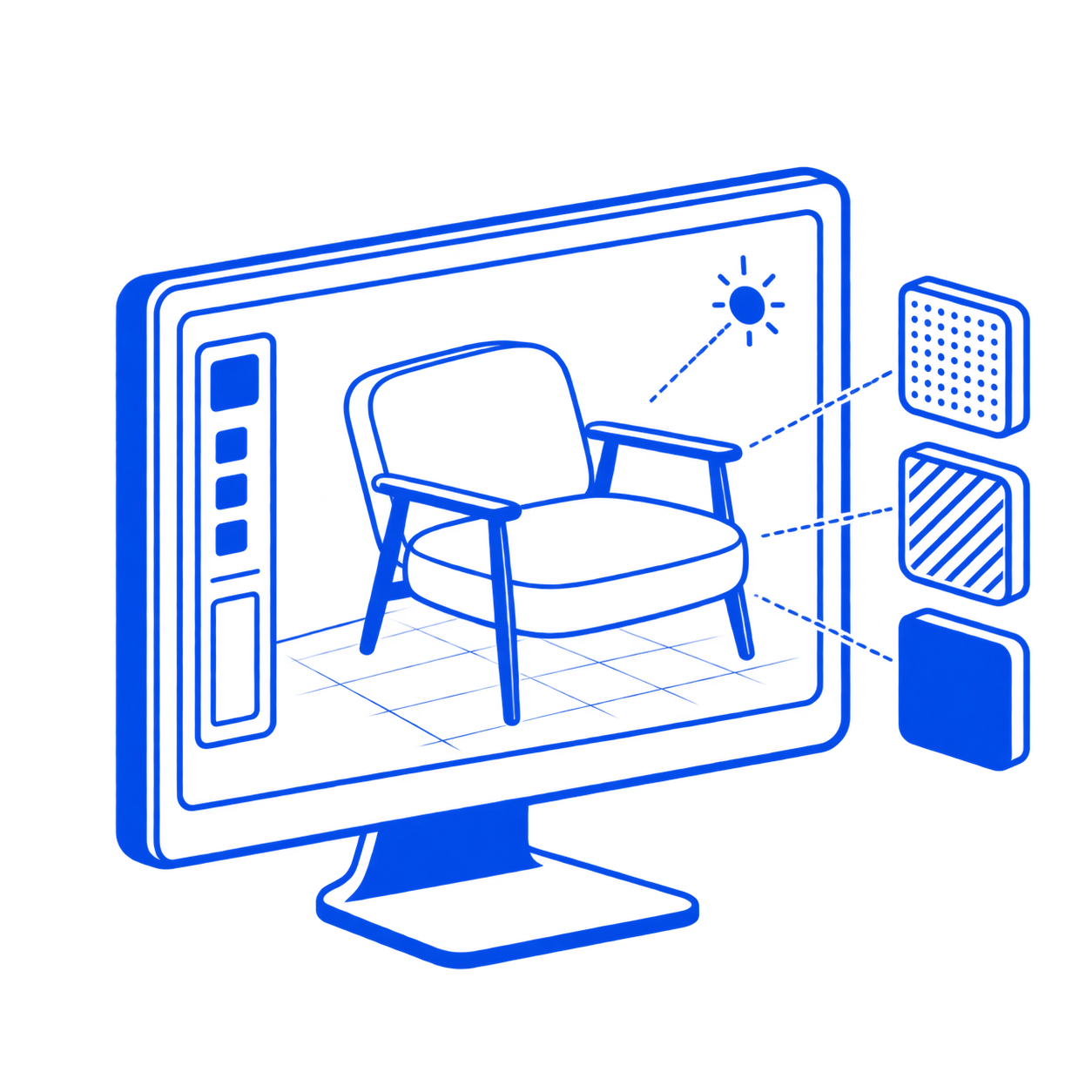
Import geometry, develop materials and lighting, and save the alternatives you want to compare. Studio VR opens saved BIP and KSP scenes.
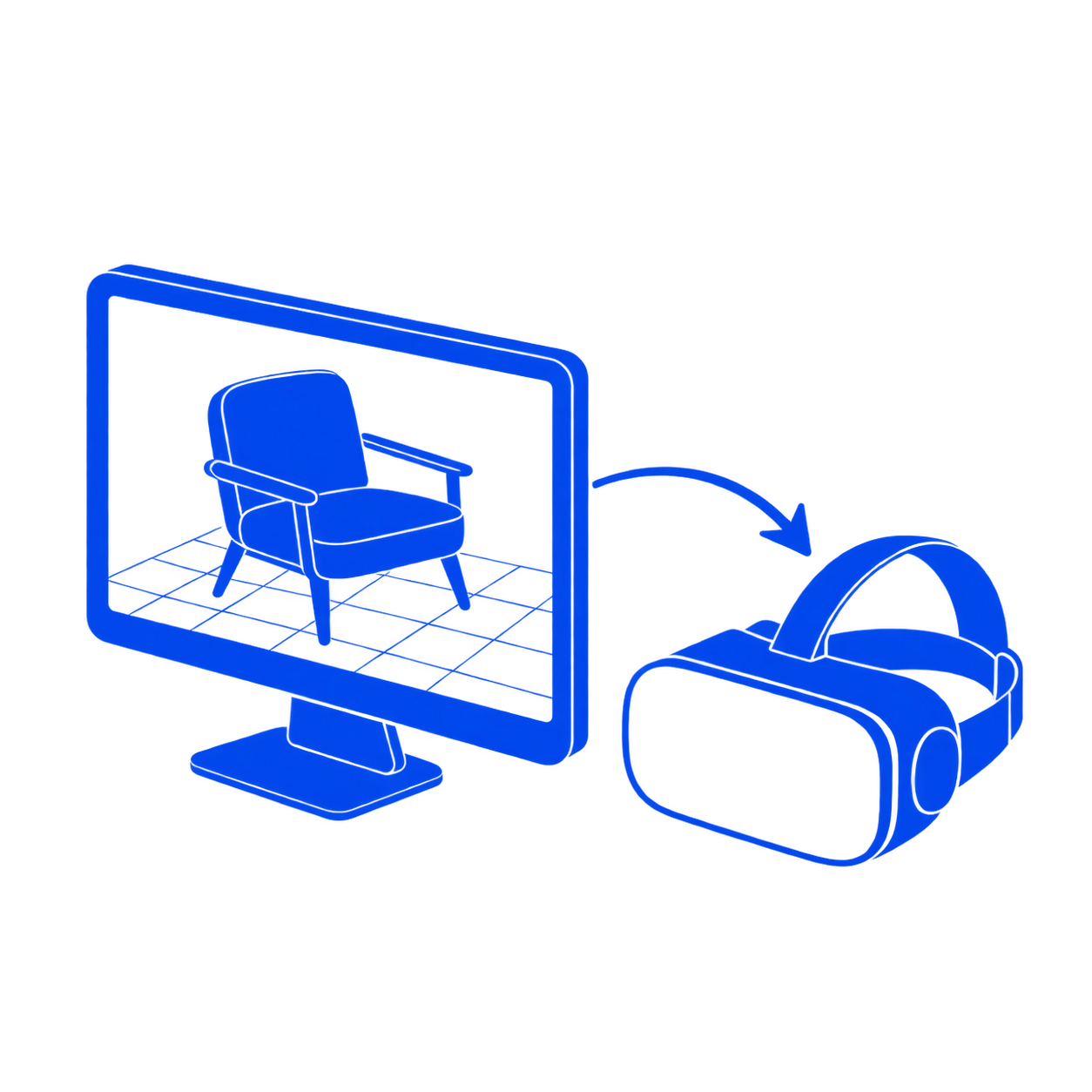
Launch from Studio’s VR toolbar button, or load the scene directly in Studio VR. Connect your headset and controllers to the Windows PC.
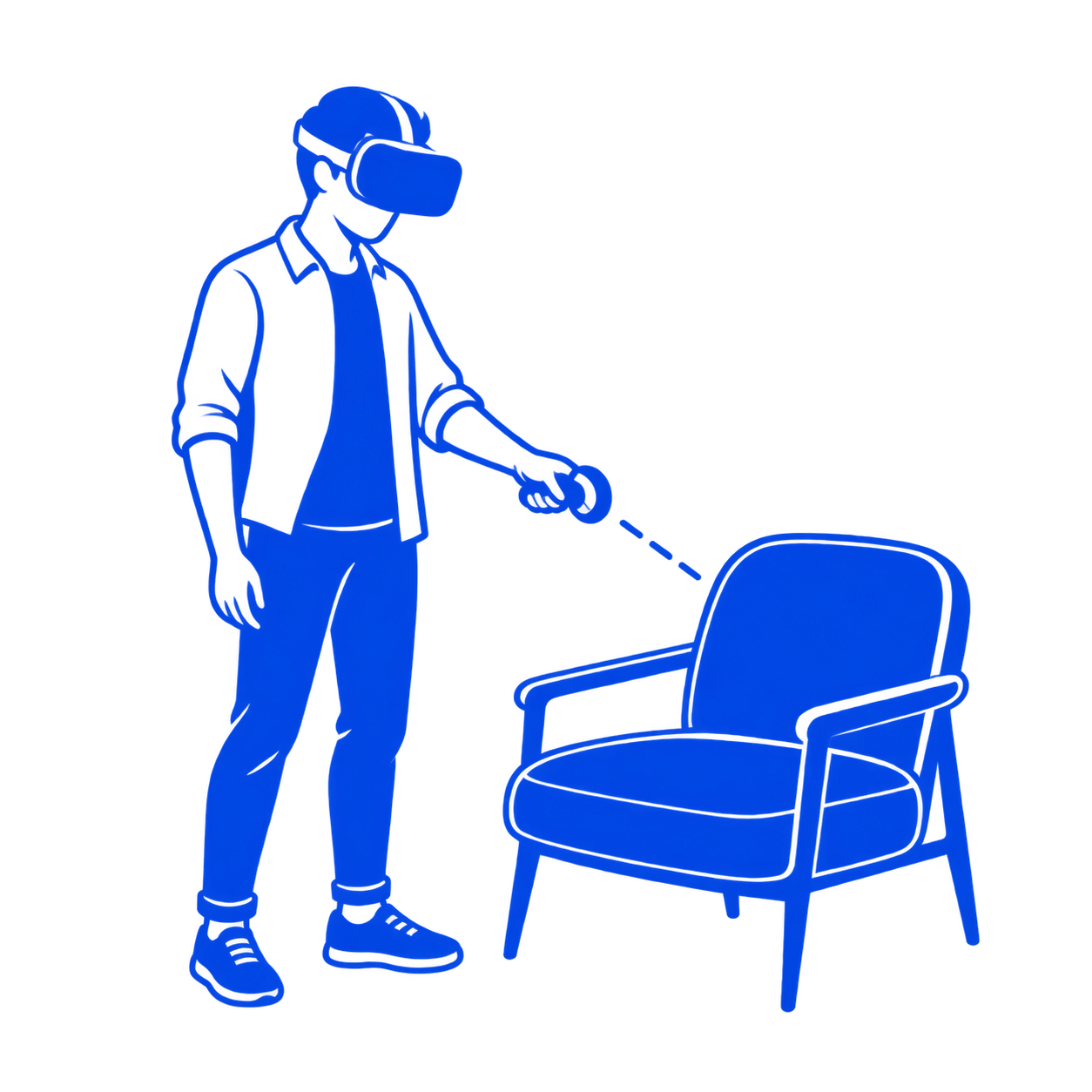
Move around the scene, examine details and switch between authored choices. Bring a focused question: how does the product look, feel in scale or sit in its surroundings?
Three ways to make a design conversation more tangible: explore scale, compare appearance and inspect the space between parts.
Walk around a full-size product or change your size within the scene. User scaling brings a small component closer and makes a large assembly easier to explore.
Switch saved material and model alternatives, change the environment or return to an authored camera. Evaluate the choices from the same useful viewpoint.
Move objects to explore their arrangement. Use the measurement tool, units and snapping to inspect dimensions and distances as part of the review.
Give design, sales and marketing a shared place to discuss the product. Everyone joins the same scene, with the freedom to look from their own position.

Distribute the same scene version to each participant before the session, so the group reviews a common product and set of alternatives.
Host a Connect session on the same local network, or arrange a suitable VPN between locations. Each VR participant needs their own compatible PC and headset setup.
Explore a design detail with engineering, walk through a product display with sales or agree on presentation choices with marketing—all within the shared session.
Studio VR runs on the workstation. A compatible headset uses the PC’s active OpenXR runtime to bring that scene into view.
These are KeyShot’s published recommendations. Scene complexity and headset resolution can require more capacity. Use a supported Windows release and allow additional space for scenes and headset software.
Check the specific headset model, connection, drivers and its own PC requirements before choosing hardware.
HP Reverb and Lenovo Explorer use a legacy Windows Mixed Reality setup. WMR is absent from Windows 11 24H2 and later; Microsoft’s Windows 11 23H2 Steam support runs through November 2026. Check the existing OS and headset path before upgrading.
Scene compatibility, XR, delivery and licensing.
Studio Configurator, Studios and Fade animation are not supported. Material and lighting representation can differ from Studio; baking can improve certain material effects. Test a representative scene with the effects and animation your review needs.
XR mode needs compatible XR-capable hardware and the appropriate PC connection and runtime. Passthrough support differs between devices, so confirm the intended model and software combination. This remains a PC-based Studio VR workflow.
They serve different viewing situations. Studio VR is for immersive exploration with a compatible PC and headset. Studio Web brings presentations to a browser, including interactive scene viewing and prepared rendered-frame 360/XR output. Choose the delivery around how your audience will view the product.
Studio VR is separately licensed. Match the number of participants and the intended immersive or shared-review workflow to the licenses and hardware your team needs. A Studio subscription alone does not establish VR access.
Bring the product, the review question and the people who need to see it.
We’ll help plan the KeyShot workflow, hardware considerations and training around that experience.