Discuss a trialarrow_outwardDiscover Creoarrow_outward
Creo’s Unite Technology
Different CAD origins. A connected design.
Bring design data from different CAD systems into the same engineering conversation. Work with mixed assemblies in Creo, convert selected models when needed, and plan how partner changes return to your design.
Creo Unite brings supported parts and assemblies from other CAD systems into a working Creo assembly. Teams can use supplier components and legacy designs in context while the original authors maintain their models in their own CAD systems.
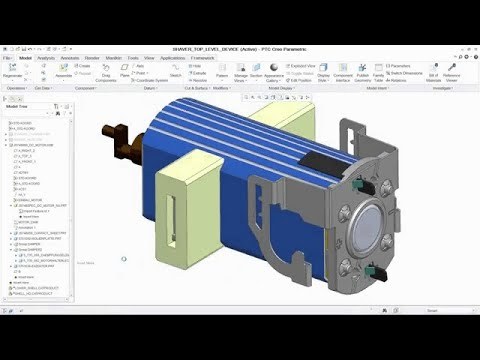
The showcase demonstrates how Unite brings models from different CAD systems into one Creo assembly.
Plan the model relationship
Open. Convert. Update. Choose how the model moves.
Choose the workflow based on who will make the next design change.
Choose the relationship the work needs.
Use in context
Open the model. Keep the source relationship.
Direct opening brings supported external parts and assemblies into a mixed-CAD design. Creo uses wrapper data around the source model; plan where both are stored and check the assembly relationships your team relies on.
Take ownership selectively
Convert what needs to change.
For a consolidation project, select the components that need Creo-native work instead of converting the entire legacy assembly at once. Agree naming, model ownership and downstream references before replacing an external component.
Coordinate the next revision
Make updates a deliberate part of collaboration.
Format-specific Collaboration Extensions support update workflows for external data. Review a representative source revision, its references and any affected drawings before adopting the revised model. Confirm the required extension and release.
Start with the file version and collaboration license your workflow requires. Direct opening, conversion and later updates have different requirements.
The technical reference and evaluation checklist below help you verify the workflow with your own files.
The team perspective
What changes for your team.
Less repeated preparation
Reuse supported geometry rather than rebuilding a partner’s model just to begin the next design task.
More concurrent work
Let different teams develop their own components while checking how they fit the shared assembly.
A focused consolidation effort
Prioritize conversion and training around the work that needs to move, rather than treating every legacy file alike.
From shared geometry to useful work
Take shared geometry further. Put Creo to work.
Unite connects incoming design data to the broader Creo workflow. Use the mixed assembly to decide what you need to deliver next. That might be a revised mounting bracket, an assembly drawing for review or a model to send back to a partner.
Keep the next deliverable in view.
A successfully opened model is the beginning of the evaluation. Check the interfaces you reference, the drawings you must produce and the information that needs to go back to the partner. Another system’s original feature history is not automatically rebuilt as a Creo feature tree.
Use the incoming component to check where a new bracket mounts and which surfaces the drawing needs to show. Review the modeling and data-exchange tools together so the assembly and its drawings support the same handoff.
If you need to add connector clearance or shift a mounting face, test the edit on a representative part. Confirm whether the supplier should revise the source or your team should take ownership of a Creo copy.
List who needs to open supplier files, who needs to edit geometry and who needs to bring in revisions. Use that list to check which interfaces and collaboration extensions each role requires.
Use the evaluation to make storage, ownership and update decisions concrete.
Representative data
Bring a real part and assembly with the source CAD version and any important configurations. Include a mounting or clearance reference your team relies on.
A meaningful change
Bring a second revision that changes a known interface. Check how it affects the assembly references and any drawings your team needs to issue.
A clear exchange boundary
Agree who authors the source, who accepts the revision and which file format the recipient can use. Try opening the return file in the recipient’s CAD environment.
Industry Applications
Across suppliers and sectors. Make multi-CAD work for your product.
Start with the interfaces and ownership questions that matter to your product. The right multi-CAD workflow depends on the source data and the work each team needs to retain.
Scroll or swipe to explore all 5 industries. Use Tab to reach each industry link.
Aerospace & Defense
Program teams may receive geometry from multiple partners. Plan file versions, source ownership and downstream reference checks before bringing that geometry into the working product definition. Multi-CAD collaboration in context How will a partner revision reach the next design review?
Vehicle programs coordinate components across packaging, supplier and manufacturing constraints. Use this setting as a practical example when working with supplier and partner geometry from multiple CAD systems. Which product interface and review criteria should guide the evaluation?
Industrial equipment often combines supplier modules with internally designed structures. Use a mixed assembly to review mounting interfaces and service space before deciding which purchased or legacy parts need conversion. Multi-CAD collaboration in context Which component should stay under supplier ownership?
Mechanical enclosures can depend on external board, connector and supplier geometry. Check the interfaces and configuration needed for packaging work, then agree the exchange format for the next handoff. Multi-CAD collaboration in context Which supplied interface drives the packaging decision?
Device teams work within defined design controls and documented review responsibilities. Use this setting as a practical example when working with supplier and partner geometry from multiple CAD systems. Which product interface and review criteria should guide the evaluation?
Before the next model arrives. Get your Unite questions answered.
Resolve format, ownership and update questions around your actual design data.
Is Unite a separate CAD authoring system?+
Unite is integrated Creo technology for working with supported design data from other CAD systems. It helps connect that data to Creo applications; it does not replace the source authoring system in every workflow.
Which CAD formats should we evaluate?+
Start with your actual source files. Current Creo Help describes workflows for CATIA, NX, SOLIDWORKS, Autodesk Inventor and Creo Elements/Direct, with differences by format and application. Confirm the exact file versions, configurations and license requirements.
How are opening and importing different?+
Opening supported non-Creo data allows it to participate in a mixed assembly with wrapper information. Importing or saving a selected model as Creo data serves a different ownership and conversion need. Choose the method around the intended work and references.
Do all external models update without an extension?+
Do not assume that they do. Current Creo Help distinguishes opening data from updating it with the appropriate format-specific collaboration license. Check how an out-of-date model is handled in your configured Creo environment.
Will the original feature tree be recreated?+
Do not plan on automatic reconstruction of another CAD system’s native feature history. Evaluate usable geometry, structure, references and the edits or deliverables your team needs in Creo.
What should we test before consolidating CAD systems?+
Use a representative assembly and a controlled source revision. Review model completeness, naming and storage, downstream references, exchange requirements, training and the applicable Creo interfaces and extensions.
Your multi-CAD discussion
Start with your assembly. Plan a connected CAD workflow.
Tell us which CAD systems, file versions and source changes your team needs to work with. TriStar can help frame a representative evaluation and clarify the Creo environment, collaboration extensions and handoff practices.